The ZKTeco F17 is a compact and robust biometric access control terminal, known for its design and durability, particularly its IP65 rated waterproof and dustproof structure, making it suitable for harsh environments. It supports multiple authentication methods, including fingerprint, PIN, and RFID card readers. The terminal is compatible with ZKAccess 3.5 software, enhancing its functionality for outdoor access control and time attendance purposes in various settings.
Enrolling of Fingerprints on ZKTeco F17 Biometric Reader
Step 01
Press the Menu Button
Step 02
If you do not have an Admin Password setup, continue to Step 5
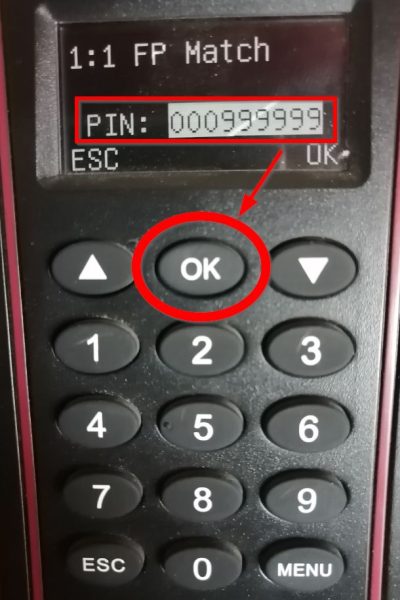
If you have an Admin password set up, it will show Admin Affirm 1 –
Start typing your Code/Pin, for example 999999.
Step 03
After you entered the Code/Pin, Press OK.
Step 04
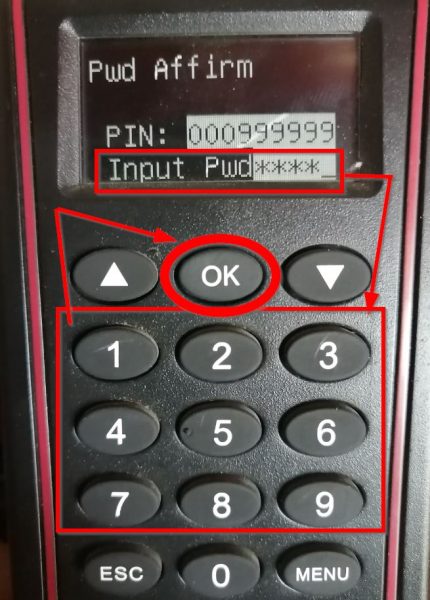
Enter your password using the keypad and then Press OK.
Step 05
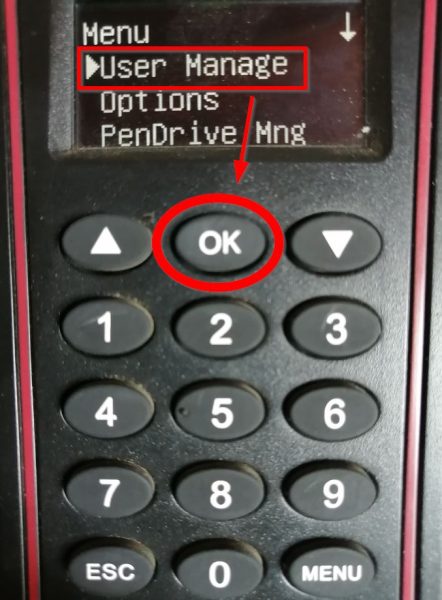
You are now in the MENU section. For this task, we will select User
Manage and then Press OK.
Step 06
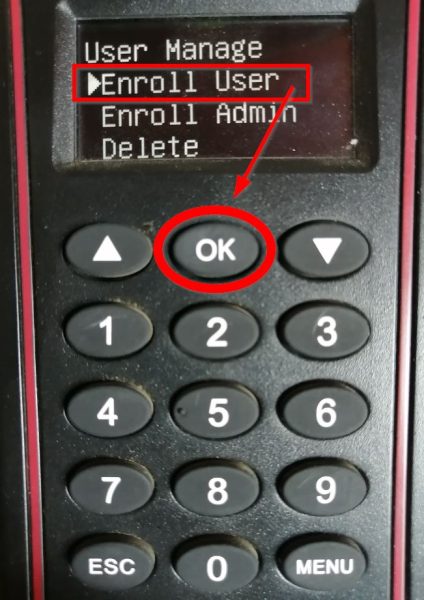
Select Enroll User and Press OK.
Step 07
Select Enroll FP (Fingerprint) and Press OK.
Step 08
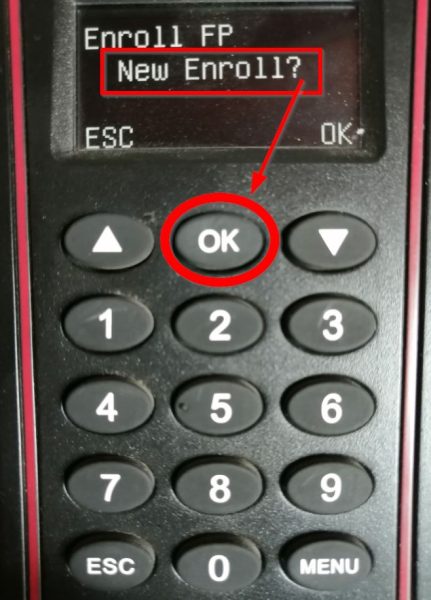
You will then be asked if it is a New Enroll, Press OK to confirm that it
is.
Step 09
It will then ask for a PIN, this is the clock code of the employee on BioSyn. Make sure that you enrol the code exactly as it is added on
BioSyn, then Press OK.
Step 10
Ask the employee to choose a finger that he/she will be using to scan, and let them put that finger on the fingerprint reader once and lift up.
If your attempt to enroll the finger is unsuccessful, you’ll need to repeat Step 10 until it works; otherwise, proceed to Step 11.
Step 11
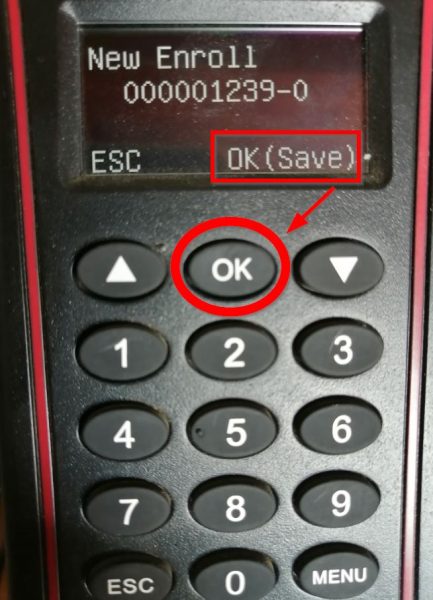
It will then ask to Save the enrolment, so remember to Press OK to
Save.
Step 12
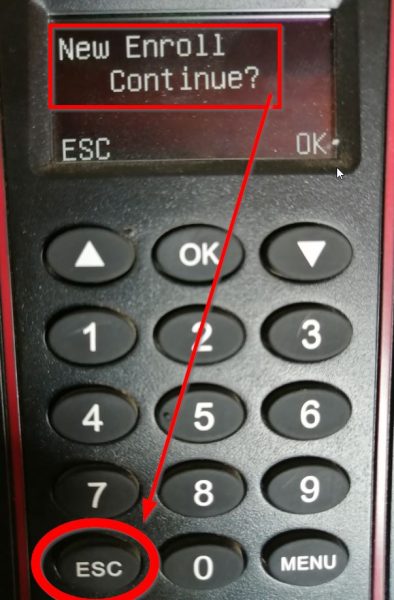
After you save, it will ask if you want to do a New Enroll. You can select OK if you want to continue enrolling new employees, or just Press the ESC (Escape) button till you reach the Home Screen. You can now ask the employee to scan and make sure it shows verified when he/she scans.