The ZKTeco F17 is a compact fingerprint reader designed for outdoor access control and time attendance, notable for its rugged construction and advanced features.
Zkteco F17 - Enrolling a Password for Access Control
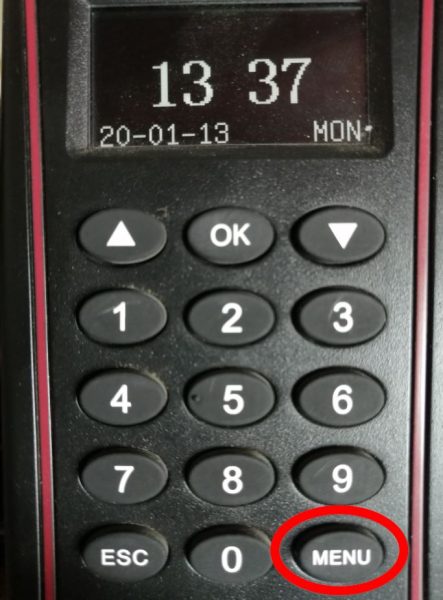
Step 01
Press the Menu Button
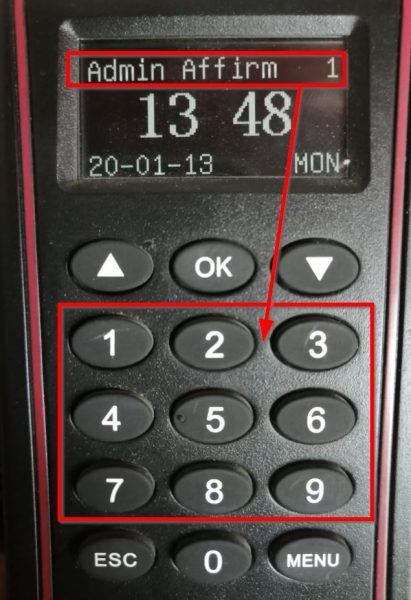
Step 02
If you do not have an Admin Password setup, continue to Step 5
If you have an Admin password set up, it will show Admin Affirm 1 –
Start typing your Code/Pin, for example 999999.
Step 03
After you entered the Code/Pin, Press OK.
Step 04
Enter your password using the keypad and then Press OK.
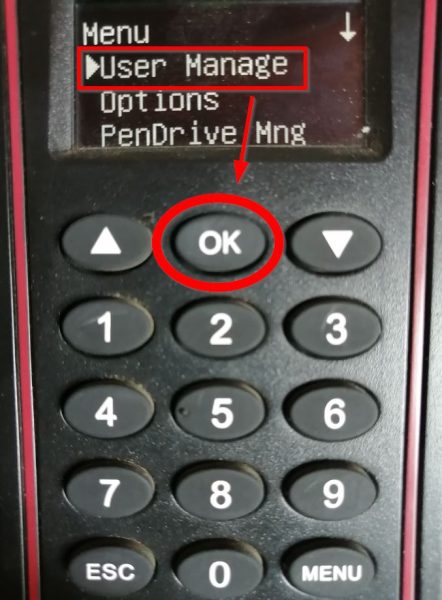
Step 05
You are now in the MENU section. For this task, we will select User
Manage and then Press OK.
Step 06
Select Enroll User and Press OK.
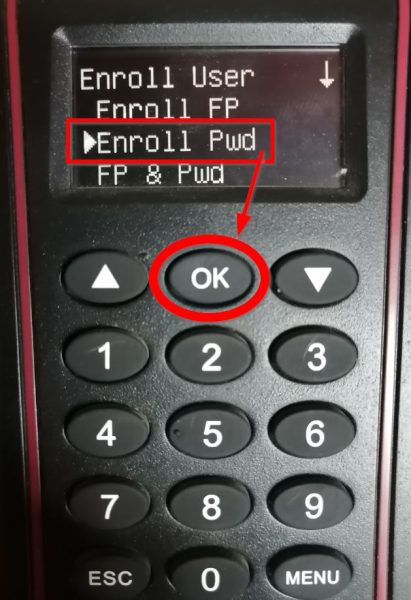
Step 07
Select Enroll Pwd (Password), then Press OK.
Step 08
You will then be asked if it is a New Enroll which in this case it is, so Press OK.
Step 09
Then Enter the clock code of the employee in the PIN field and Press OK.
Step 10
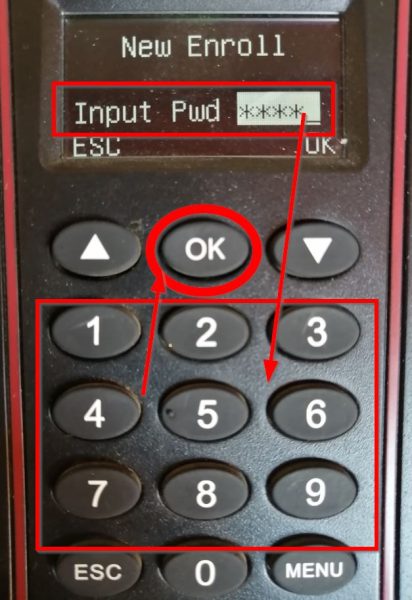
Input the Password the employee will use and Press OK.
Step 11
Affirm the Password, then Press OK.
Step 12
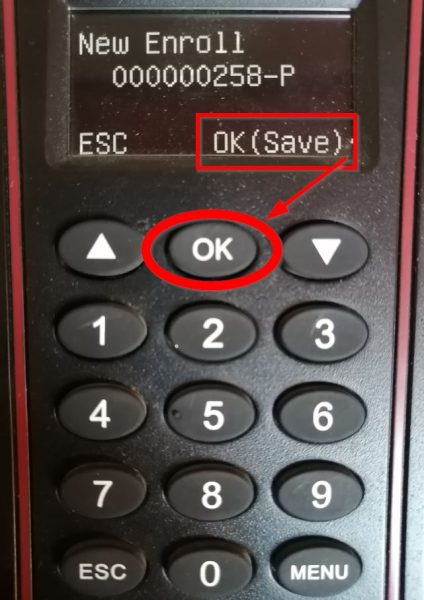
Press OK to Save.
Step 13
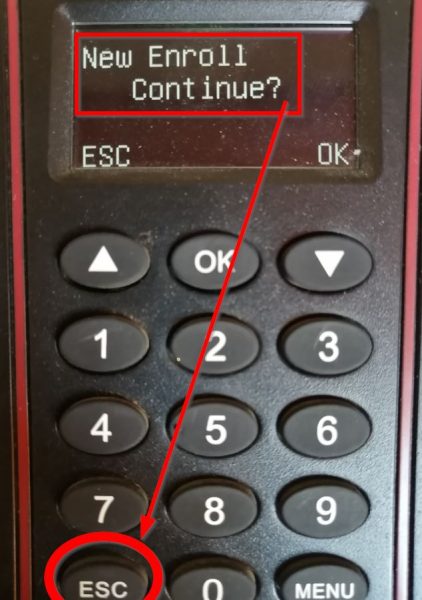
You will then be asked if you want to do a New Enroll, in this case no, so Press ESC (Escape) button till back on Home Screen. You can let the employee enter his clock code and press OK, then input his password and Press OK again to clock IN/OUT.
Zkteco F17- How to Enroll New Password
To contact Biosyn about enrolling a Password on your ZKTeco F17 device, call their sales team at the number provided on their website. Biosyn’s consultants can guide you through the setup process and explain how to configure the device for standalone or networked operations.
Biosyn’s professionals are adept at customizing device configurations for both standalone and networked settings, guaranteeing a smooth integration experience. They offer comprehensive support throughout the intricate setup process, tailored to meet the distinct requirements of each business or application, which significantly enhances operational effectiveness and strengthens security protocols.